App makers outside Apple know best what needs to be developed and what's not. Users'thirst of really useful, great apps are not left in the wild unnoticed. In fact, it motivates and drives competition among developers who create a great selection of apps for us to enjoy.
Unfortunately, great apps don't easily make its way to Apple's AppStore. Not because they're too buggy or useless but because of Apple's restrictive policy, preventing developers to accomplish something great.
5 Essential Android Apps That We Wish Existed On The iPhone
In this post, we're going to explore some of the great, useful apps that exist in other mobile operating system but not in non-jailbroken iOS. These are apps that are sure a big hit and will make your iPhone a little less dumb once made available in iTunes.

Smart app protector to password-protect individual iOS apps without Jailbreak
I have a non-jailbroken iPhone 5 and just like you, I've been looking for iOS apps similar to Android's AppLock so I can restrict access to some of my personal & finance apps by protecting them with a password. Unfortunately, there doesn't seem to have a way out except for iAppLock, a jailbreak app that can password-protect apps in iOS devices.
The reason why Apple can't approve such apps is that it is a violation of terms for an application to make a system-wide change and make a password for individual app. Applications have to one-by-one add password locks if they want to. Yeah, I know. It sucks!
More in this category:
How To: Remotely Lock, Password-Protect Your Lost/Forgotten Phone Thru SMSHow To: Password Protect, Lock Google Chrome Browser
How To: Lock, Protect Certain Programs Installed On Your Computer
An offline answering machine for iOS
Offline Answering Machine for iOS is undoubtedly one awesome app! This is a kind of software that automatically answers phone calls with your pre-recorded greeting and records/saves the voice message straight to your iPhone, bypassing telco's voice mailbox service. Not only can you cut your phone bills but sure you can avoid unanswered phone calls from important people.
Back in Symbian days, Voice Inbox is one of my must-have apps that does just that. If you still have s60v3 phones, you should go and get this app. Things you can do with it: replay voice messages anytime without calling an operator, see the name of the caller (not just a number), call back in a click.
As yet, neither Android nor iOS has an app for that.
A call-recording software for iPhone
Being able to record phone calls (and even Skype calls) is sometimes necessary, most especially if someone is giving you important directions over the phone. If you're confused or unsure what your mom or boss has said, you can turn to the recorded phone call and listen it once again.
Both Android and Symbian have decent working apps for that. For iOS, I can't still find any.
Tasker-like automation app for iPhone
If you've been on Android in the past, you should have already heard about Tasker. Tasker is an award-winning app that brings complete automation to your Android device.
There are plenty of automation options you can exploit with Tasker; it can automatically send SMS to your parents when you're leaving the house, it can automatically switch your phone to “Silent” mode when you're in office, among others.
Automate Your Phone: Let Your Phone Perform Certain Actions Based On Your Location
While there's IFTTT for iPhone you can explore, Tasker is far more advanced and feature-rich as compared to IFTTT.
AdBlocker for iPhone to block pesky ads popping on your favorite game/app.
There's no need for me to enumerate the pros of having an ad-blocking software installed on your iOS device. Unfortunately, ad-blocking software are too controversial that they don't even make their way to Play Store or AppStore. Unless you do the risky business of jail-breaking or “rooting”, you can block ads on your Android or iPhone.
Have something to add on this list? Buzz off in the comments below. :)


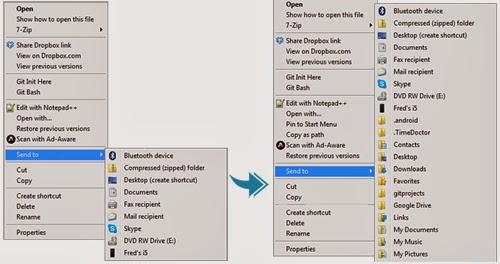 When you right-click on an icon, the options in “Send to” are actually quite limited. For a full list, just press Shift key before right-clicking. This will
 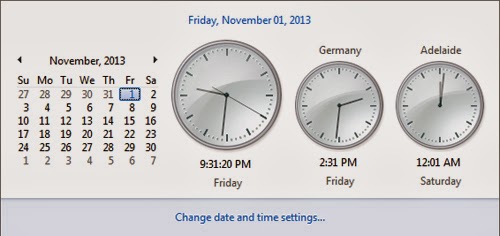 Need to call Uncle Marvin? What time is it in Alaska? Is mom still awake in Brisbane? No one can memorize so many time zones (even Americans still get hung up with their 5 time zones). You can add more clocks when you click on the date and time icon. Click the time and date at the right side of the taskbar and then click Change Date and Time Settings. Look for the Additional Clocks tab and you can add one or two extra clocks with custom time zones and labeling of your choosing. After you click Apply and OK, click the time and date again. The local time should be the big clock, and the ones next to it the custom additions.
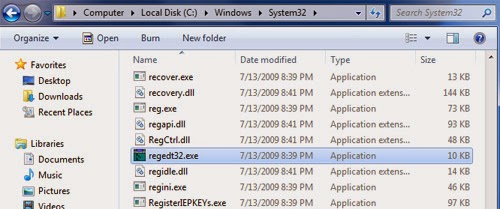 There are a thousand tweaks that you can do only by editing an obscure value in the registry. So you make one of those changes, and then a few weeks or months later you need to do it again. It's easy to find your way back if you leave behind a trail. You can simply save the key in question to Window’s Registry Editor, or the Regedit built-in Favorites menu. At the top of the editing window, click Add to Favorites and the current location is saved, using a name of your choosing. If you need to remove entries from the list, just click Remove Favorites.
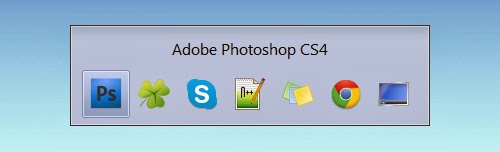 Another useful tool in Windows 7 is Alt + Tab. In the window you can click on any icon including the desktop to open it. Alternatively on pressing tab, it moves to the subsequent icon and after you leave alt, the highlighted window opens. If you want to move the highlighter the other way, press shift while hitting tab.


 Click to enlarge
 Click to enlarge
 Click to enlarge





 Say goodbye to tiring, stressful, and tedious setting up of laptops and heavy projectors. No more having to search for lost USB drives since your phone is always with you.


